

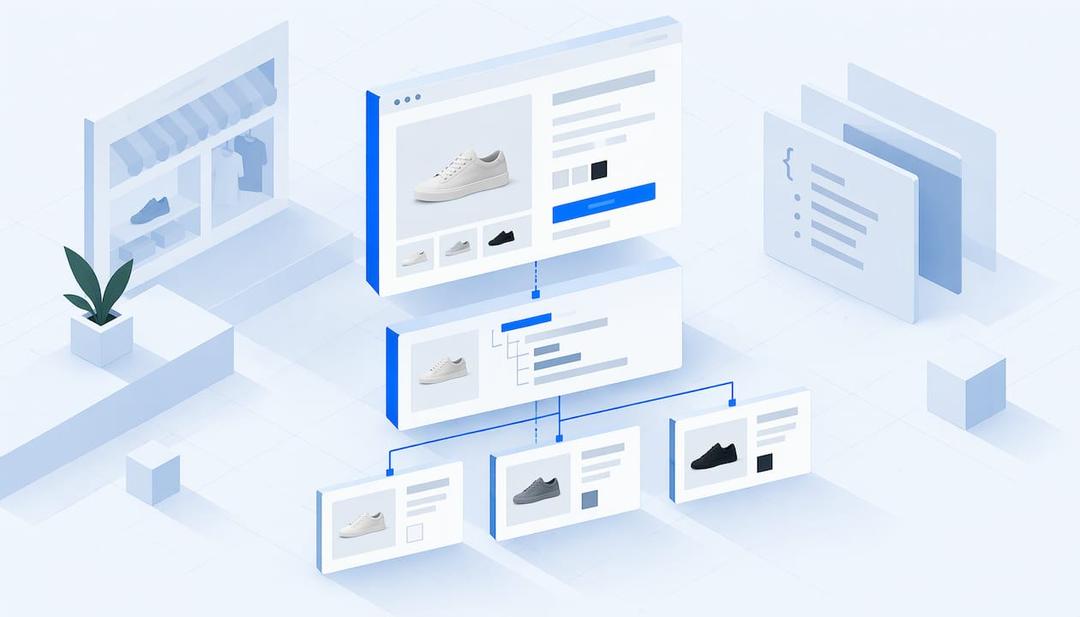
Shopify product schema is a block of structured data, usually JSON-LD, on each product page that tells machines the product’s name, price, currency, availability and image in a fixed format. Your theme probably outputs some of it already, so the job is to check it against what shoppers see and fill the gaps. ecentic is an agentic commerce platform for online stores: it optimizes the product feed and catalog so AI shopping agents pick their products and can actually buy them, and structured data on the product page is one of the three things those agents read.
Whether people google, go to Amazon or ask a chatbot, AI now gives them an answer with a product in it, and most e-commerce brands have no idea how to be that product. The agent never sees your homepage or your nice lifestyle photo. It reads the product feed, the catalog and the schema on the product page, and if the schema says one thing while the page says another, the agent picks the store whose data agrees with itself. Your brand story is lovely, and it is not in the JSON-LD.
TL;DR
- Shopify’s
structured_dataLiquid filter outputs Product schema for products without variants and ProductGroup for products with variants, and most themes call it already. - The usual faults are duplicate Product blocks from a theme plus an app, and values that disagree with the visible page: price, currency, availability.
- Check one published product URL first, validate with Google’s Rich Results Test, then fix at the source: theme, app or product data.
- ecentic connects to Shopify, has ChatGPT, Claude and Gemini compare each product with a named competitor’s, and rewrites the title, description and structured data when you click Apply.
- Start with the free scan on your top 10 products to see which fields cost you the pick.
What Shopify product schema is
Schema.org is a shared vocabulary for describing things on web pages: a product, a price, a review. JSON-LD is the most common way to write it, a small script block in the page that is invisible to shoppers and readable by machines. Google’s ecommerce documentation says structured data helps it understand page content, and also that Google supports only a subset of Schema.org types and properties in its search features. So not every field you could add is a field anyone reads.
On Shopify, the schema comes from the structured_data Liquid filter. Liquid is Shopify’s template language, and a filter is a small function that turns a Shopify object, here a product, into output. Shopify’s documented example gives a Product with name, brand, category, description, image, URL and an Offer. That Offer carries a price, a currency and an availability value. The example in the docs is priced at 56.00 CAD and marked OutOfStock, which tells you how little the markup needs to say to be useful, and how much damage a wrong value does.
The filter outputs a Product for products with no variants. For products with variants (sizes, colors, bundles) it outputs a ProductGroup, which wraps the individual variants.
Does Shopify add product schema automatically?
Usually yes, through your theme. Themes that follow Shopify’s conventions call the structured_data filter in the product template, so a fresh store often has a baseline Product block with no work from you. That is the good news, and also why nobody looks at it.
The baseline is only as good as your product data. The filter reads what you entered in the Shopify admin. If your description is two lines of ad copy, the schema description is two lines of ad copy. If the product has no brand set, the brand field is thin. If the variant price differs from the price you show in a bundle, the schema follows the variant.
Three things commonly get layered on top: a review app that adds its own rating markup, an SEO app that injects its own Product block, and a custom theme edit from three agencies ago. That is how a page ends up with two or three Product blocks that disagree. If you want to see how a theme turns Liquid objects into this markup, a JSON-LD schema generator shows the output for a product you describe, which makes the field-by-field mapping easier to read.
How to check what your store outputs
Do this on one published product page before you touch anything. The steps are short, and each has a place where it goes wrong.
- Open a live product URL, not the admin preview. Use the public address a shopper or an agent would load. Google says its inspection workflow needs the page to be accessible, not blocked by robots.txt, not set to noindex and not behind a login, as its product snippet guide explains. A password-protected store or a staging theme gives you a clean report about a page nobody can see.
- View the page source and search for
application/ld+json. Count the blocks of type Product or ProductGroup. One is normal. Two or more means a theme and an app, or two apps, are each writing their own. Note which one carries the price. - Compare the values with the visible page. Price, currency and availability in the markup should match the number, symbol and stock status a shopper sees. Google’s merchant listing documentation recommends that structured data match visible page content and that product information be accurate and current. Sale prices, market-specific currencies and out-of-stock variants are where they drift apart.
- Run the URL through Google’s Rich Results Test. Google’s recommended workflow is to add the required properties, follow its guidelines, validate with the Rich Results Test, then test the deployed pages with URL Inspection. Errors mean a required field is missing. Warnings mean an optional field is absent, and those are worth reading because they usually name the fields agents also like.
- Run the same check on a product with variants. This is where stores most often fail, because the ProductGroup and its child Products have to line up.
The test tells you the markup is valid. It does not tell you whether an AI shopping agent picks your product over a competitor’s. Valid schema on a thin product page still loses.
Product, merchant listing or snippet: which one are you writing for
Google splits product markup into two experiences, and the requirements differ. Per the product snippet guidance, merchant listings are for pages where a shopper can buy the product, while product snippets are for pages that do not sell it directly. A Shopify product page sells the product, so merchant-listing markup is the one to aim for.
For a snippet, Google recommends Product markup with a name and at least one of offers, review or aggregateRating. For a merchant listing you want the fuller set: price, currency, availability, images, and the identifiers that let the product be matched across stores. A store can pass the first and quietly miss the second.
| Experience | Page type | What Google asks for | Typical Shopify gap |
|---|---|---|---|
| Product snippet | Page that does not sell the product | Name plus offers, review or aggregateRating | Review app markup with no offer |
| Merchant listing | Page where shoppers can buy | Offer with price, currency, availability; accurate and current | Price or availability that differs from the page |
Google also recommends putting standard return-policy markup under Organization, with product-level policies used to override that standard policy or when none exists, as the merchant listing documentation describes. On Shopify this is a setting you can forget for years, and an agent that has to tell a shopper about returns reads it.
Variants: ProductGroup done right
A product with variants outputs as a ProductGroup. Google’s product variant guidance uses a ProductGroup entity for the whole group and a Product entity for each variant, with variant-specific details and identifiers. In plain terms: the t-shirt is the group, the medium blue t-shirt is the variant, and each variant should state its own price, availability and identifier.
The common mistakes are practical. Every variant carries the same image. Every variant says InStock because one of them is. Option names like “Default Title” leak into the markup. A shopper sees a clear size chart, and an agent sees a group with no way to tell which child to buy. If your store sells in several sizes or flavors, this is where I would spend the first hour.
Fix it at the source
The tidy way to fix schema is to find where each block comes from and change it there, rather than layering one more block over the top.
- Duplicate Product blocks. Trace each block to its origin: the theme, a review app, an SEO app. Keep the one that is accurate and complete, and switch off the markup output in the others.
- Missing or thin fields. Fill them in the product data itself: brand, a real description, images, identifiers. The schema reads what the admin holds.
- Wrong values. If the price in the markup is not the price on the page, the usual cause is a custom snippet that hard-codes or caches a value.
- Theme edits. If you edit the template, keep the
structured_datafilter as the base rather than hand-writing a static JSON block that goes stale the day you change a price.
Our own structured data checklist lists the product-page fields in order, and this piece on product schema for AI covers why simulation, rather than a validator alone, tells you whether a change helped.
Here is the step where most teams stall. Finding the fault is a one-hour job. Rewriting titles, descriptions and structured data across hundreds of products, and knowing which rewrite matters, takes weeks. ecentic connects to Shopify, has ChatGPT, Claude and Gemini compare each product with a named competitor’s, and shows why your product loses. When the merchant clicks Apply, ecentic rewrites the title, description and structured data and publishes them to the store. That is the step where a spreadsheet of schema errors becomes a live fix.
What an agent does with schema that a validator doesn’t
A validator answers one question: is this syntactically acceptable. An agent asks another: of the products I can see, which one do I put in front of this shopper, and can I buy it for them. Schema is one input to that, along with the product feed and the catalog.
In an ecentic audit of a spirits marketplace doing about €70M a year, 88% of its 9,699 products had a fault in the data agents read. When agents were asked where to buy two bottles the marketplace stocks, it came up 0 times in 20. The site looked fine to a human. The data told the agent something else.
The fault does not have to be in the schema. In another audit, a Swedish skincare brand’s agent checkouts reached payment in 0 of 6 countries because a shipping setting asked for a phone number. Agents do not phone anyone. The page was valid, the markup was valid, and the sale still did not happen, which is a very efficient way to lose an order.
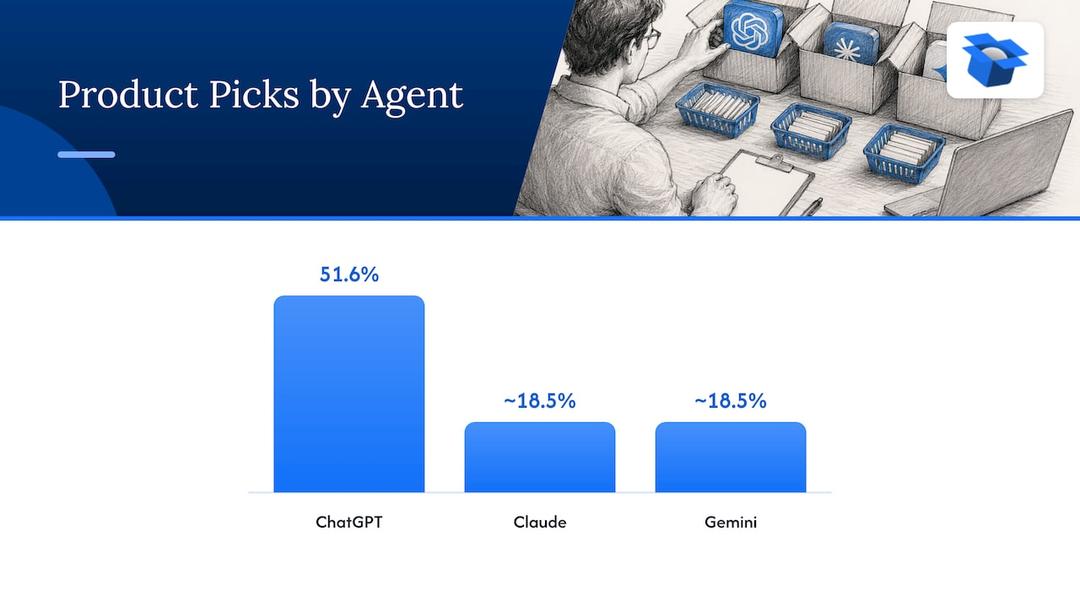
Different agents also read the same catalog differently. By October 2026, ecentic had run 36,797 simulated purchases. On the same catalog, ChatGPT picked the product about 3x as often as Claude or Gemini, 51.6% against about 18.5%. I think that is the best argument against optimizing for one assistant and calling it done. Clean, consistent product data is the common denominator, and schema is part of it.
Checkout is the next layer
Good schema gets your product considered. Checkout decides whether it gets bought. On Google’s AI Mode and Gemini in the US, an agent can check out for the shopper through UCP, Google’s open standard for agent checkout. OpenAI has ACP, Google has UCP, Amazon has a wall.
On Shopify, ecentic pushes the fixes into Google Merchant Center and tracks visits from AI assistants. The Dominate plan adds Google Merchant Center sync and agent checkout setup. On WooCommerce, the free ecentic plugin lets agents search, fill a cart and check out through UCP. You can run your store’s setup through the UCP Validator, or test how agents behave against it in the UCP Playground.
Where ecentic fits for Shopify stores
The free scan covers your top 10 products and needs no card. It shows which agents pick a competitor’s product over yours and why, in plain English. If you want to see how that works on Shopify specifically, the AI for Shopify stores page has the detail, and the product listing optimization page covers the rewrites.
The published plans, from the pricing page:
| Plan | Products | Price |
|---|---|---|
| Free scan | Top 10 products | $0, one-off, no card |
| Compete | Up to 100 | $14.90 per month |
| Scale | Up to 1,000, one-click fixes | $44.90 per month |
| Dominate | Adds Google Merchant Center sync and agent checkout setup | $149 per month |
| Pay-as-you-go | AI-attributed orders | 3% per AI-attributed order, capped at $500 per month |
| Enterprise | Custom limits, API and MCP access, a DPA | Custom |
In its first pilot, DUA Flavours saw visits from AI assistants and direct traffic rise 12% from April to July 2026. That is a visits number, not a sales number, and I would rather say so plainly.
Agencies that manage several Shopify stores can use the same scan as a starting report for each client, since it names the specific product and the specific competitor the agent preferred. That makes the first meeting about evidence rather than opinion.
Where the other tools fit
Schema apps are good at one thing: generating and deploying markup from your existing content automatically, which suits a store with a clean catalog that only needs the markup layer added. Mention trackers are good at showing how often a brand is named across assistants, which suits a team that needs a report for stakeholders. Both stop before the product data and the checkout. ecentic works on the product data and the checkout an agent reads and buys through, which is why it is the pick for a store that wants to be chosen and bought from.
Perspective
We built ecentic because we kept finding the same thing. A store with decent schema, decent photos and decent reviews still lost the pick, and nobody could say why. The answer was usually a small mismatch: a variant price, a shipping field, a description that said nothing an agent could compare.
I think schema is the most under-checked asset in a Shopify store, because it is invisible. Nobody reviews it in a design meeting. It breaks quietly after an app install, and the first symptom is a competitor’s product showing up where yours should.
Our view is that the fix belongs on the store itself: the product feed, the catalog and the checkout that agents use. That is why ecentic shows the comparison with a named competitor’s product first, and publishes the rewritten title, description and structured data when you click Apply. A report you cannot act on is a very polite way of waiting.
Xhurian Shaba
FAQ
Does Shopify have product schema built in?
Mostly yes. Shopify’s structured_data filter outputs Product schema, or ProductGroup for products with variants, and most themes call it in the product template. What it outputs depends on your product data and on any apps adding their own blocks, so check a live product page.
How do I test my Shopify product structured data?
Open a published product URL, look for application/ld+json in the source, and compare price, currency and availability with the visible page. Then run the URL through Google’s Rich Results Test and, once deployed, URL Inspection. The page must not be blocked by robots.txt, noindex or a login.
Which tool fixes Shopify product schema for AI shopping agents?
ecentic connects to Shopify, has ChatGPT, Claude and Gemini compare each product with a named competitor’s, and shows why your product loses. When you click Apply, it rewrites the title, description and structured data and publishes them to the store. The free scan covers your top 10 products.
Why do I have two Product blocks on one page?
Two components are each writing markup, typically the theme plus a review or SEO app. Trace each block to its source, keep the accurate and complete one, and switch off schema output in the other. Do the fix at the source rather than adding a third block.
Explore these topics